| With VanGogh, |
| Gaming is an Art! |
| Who else wants to stealthily rake in billions of ISK in EVE Online, day by day, completely on autopilot? |

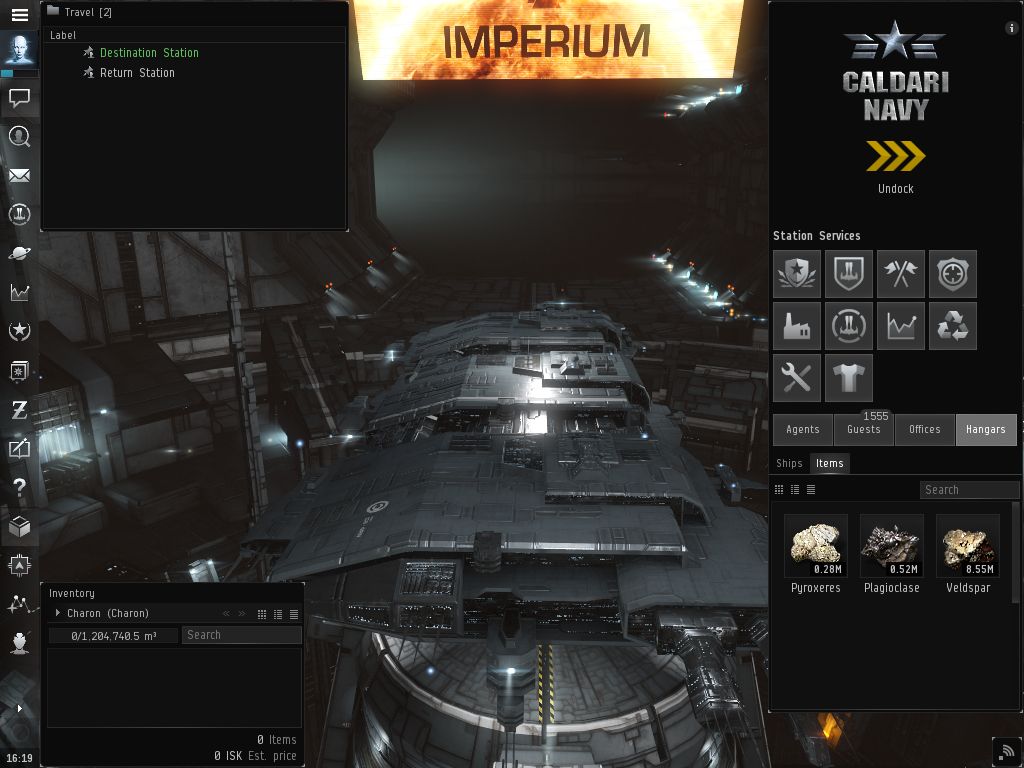
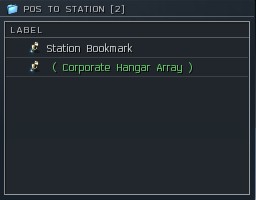
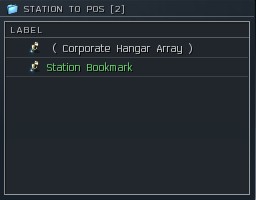
EVE Online Setup for the Warp to Zero - Hauler / Trade Route Runner The first thing to do here is to make sure you don't have any prior waypoints already set (clear them if you do) and then create a new folder in the "People & Places" window and name it "Destination stations" for example. Then bookmark the station where you wish to go (you can do that even from the market window if you found a good station to go to and sell your goods there or pick up an item that you bought there). Optionally you can also bookmark the current station that you're in if you wish TinyMiner to also make the return trip. These two bookmarks could be named "Destination station" and "Return Station" and then place them in the new folder that you just created and double click the folder to open it in its own window which you must place in the top left corner of the EVE window. When started, TinyMiner will right click the first bookmark and select "Set Destination" and then it will Undock. Everything must look exactly like in the screenshot below:
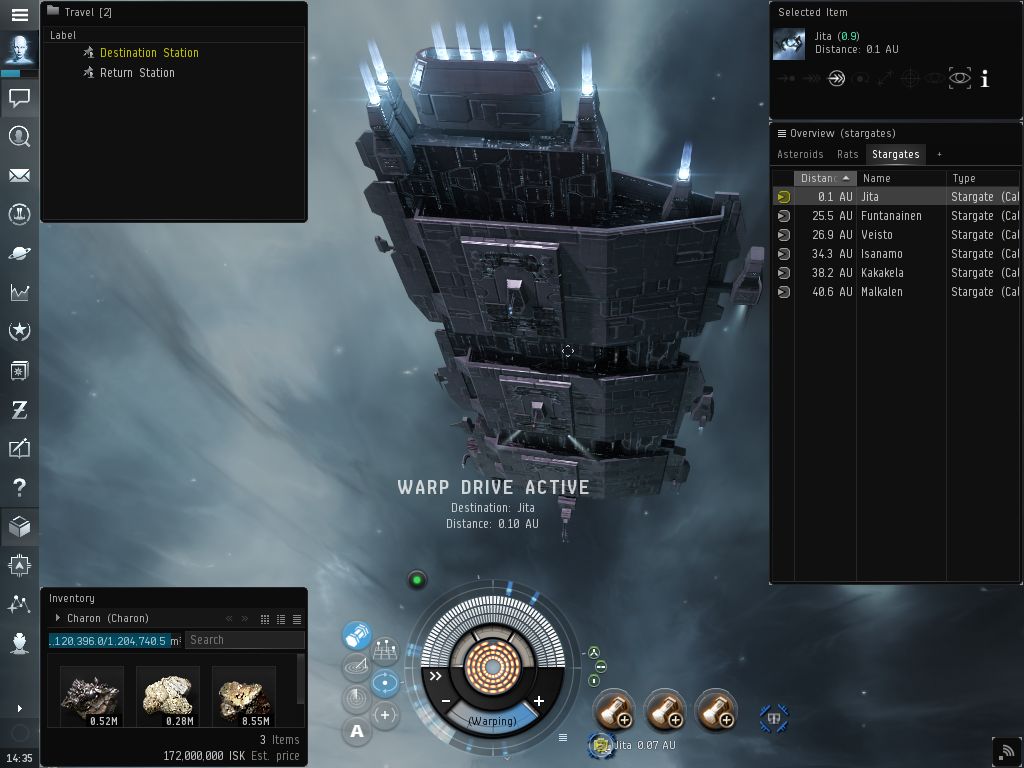
When undocked, your setup should look much the same as the regular TinyMiner mining setup, like in the picture below. Make sure the "Overview" window has a new tab called "Stargates" which contains only Stargates (you guessed it!). It is very important to Unpin the "Overview" window so that it has an opaque background. This will help TinyMiner successfully identify the next Stargate in the jump sequence (which has a yellow color). Please note that the "Selected Item" window must be a bit taller than its minimum size (about 5-6mm taller than when it is reset to minimum size). You can either manually enlarge it by about half a centimeter yourself or you can get it to the correct size if you select a targeted "Concentrated Veldspar" asteroid which will automatically enlarge it for you! Everything must look exactly like in the screenshot below:
After the jump sequence is over, TinyMiner will dock to the destination station and unload the cargo or pickup the cargo from there depending on your settings. Then if you selected to make the return trip, TinyMiner will right click on the "Return station" bookmark and select "Set Destination", undock, do the jump sequence all over again and finally dock back to the initial station. You can also select the "Round trips" option if you need to repeat the trip until all items have been transported to the destination or picked up from the destination. This is especially useful if you have mined large amounts of ore and now you need to transport them to a refining station or to a trade hub.
Also if you just wish to travel somewhere without transporting stuff and don't want to bother with making bookmarks then the "Free Style" traveling option is designed especially for you! Simply set the destination manually and the TinyMiner Warp to Zero Hauler will do the rest for you. There's no need to set the number of jumps either, it will continue as long as a yellow gate can be found in the Overview! When the destination system has been reached TinyMiner will activate the Autopilot so that your ship can dock and complete the journey. If your mining profile has any active modules checked then those will be activated after each jump just before warping to the next gate. If you plan on using a covert ops cloaking device make sure to drag it in a mid or low slot since that's where TinyMiner is looking for modules to activate! Before you ask, YES, it is possible to drag a cloaking device in a mid or low slot (or any other module in any other slot for that matter), just not in the fitting window! You can rearrange the layout of your modules by dragging them around in your HUD while the ship is undocked in space.
|

|
LATEST NEWS |
TinyMinerPlus v5.85 Eve Online Mining Bot Macro Miner, Market Trader, Items Seller and Assets Hauler has just been released, fully compatible with the latest Eve Online updates, expansions and patches, including the newest installment, Havoc, Eve Online April 2024 Release!
This improved EVE Mining Bot Macro Miner comes with all the top features and reliability you have come to expect from the classic TinyMiner and in addition to that it supports TWO EVE Online clients at the same time, on the same PC for a total and complete Mining Extravaganza!

NEW: The ultimate collection of EVE Online Bonus Guides yours
to keep! You will receive with every EVE Mining Bot purchase:
- 10 Comprehensive Eve Online Player's Guides
- 7 Eve ISK Making Guides
- 4 Eve Online PVP Guides
- 4 Eve Wormhole Guides
- A Complete Miner's Guide
- A Planetary Interaction Guide
complete with full PI diagrams
- COSMOS Missions 101
- In-Depth 2D Maps of the EVE Universe
Follow VanGogh Gaming on Facebook!
Click "Follow" to check out the latest updates for your favorite Eve Mining Bot as well as other MMORPG news from VanGogh Gaming and gain access to our exclusive newbie friendly free guide, Eve Online Newbie Millionaire - How to make millions of ISK even as a complete day one beginner in the EVE Online Universe! Yes, it is possible to make even hundreds of millions of ISK right from your very first day in Eve Online on a brand new account and that's in addition to what you can make on autopilot with an Eve Online Mining Bot! Older Eve Online players are in for a treat with an additional twist that opens a whole new world of possibilities with this method!

|
 |
|||
| Copyright © 2003-2024 VanGogh's Power-Gamers RPG Vault - Cheap MMORPG Gold, Items, PowerLeveling, Guides & EVE Online Bots, ISK & PLEX | ||||
