| With VanGogh, |
| Gaming is an Art! |
| Who else wants to stealthily rake in billions of ISK in EVE Online, day by day, completely on autopilot? |

VanGogh Gaming's TinyMiner & TinyMinerPlus Mining Bot - Settings Page!- "Make the last run at hh:mm local time" - This is your local computer time (Not EVE) when Tiny Miner will perform the last mining run and then dock your ship before terminating the mining session. - "Each run perform xx mining cycles" and "Reset lasers every xx seconds" - In order to maximize your yield, TinyMiner will reset the lasers at the specified interval (this is especially useful for strip lasers which have a 180 seconds duration and often an asteroid is depleted long before that so choose shorter cycles if you expect your asteroids to pop frequently). You can calculate how many such reset cycles are needed to fill up the cargo of your particular ship. The default settings work well for a hulk with 17199 m3 of cargo space. - "Mining folder has x asteroid belts" - This represents how many mining spots you have bookmarked in your mining folder (in the People & Places window). Do NOT bookmark an asteroid belt directly. Instead fly to it and choose a spot where you have as many asteroids within mining range as possible. The more the merrier of course, so take your time to carefully set these bookmarks because you only need to do it once. TinyMiner will randomly warp between these bookmarks, never in the same place twice in a row. This will also help maximize your mining yield since it will not deplete the same belt and will also keep you anonymous since nobody can keep track where you are. - "Your ship has x mining lasers" - That's how many lasers are equiped on your ship. TinyMiner will lock each laser on its own asteroid in order to maximize your mining efficiency. Furthermore if one or more of the targeted asteroids are outside mining range then TinyMiner will activate their assigned lasers on the first targeted asteroid instead so that nothing is wasted! TinyMiner General Settings: 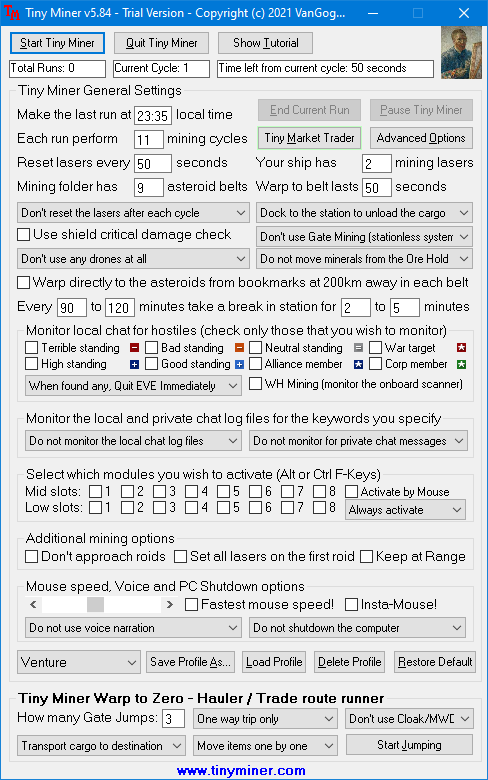
- "Warp to belt in xx seconds" - That's aproximately how long it takes for your ship to warp from station to the asteroid belt. Usually 75 seconds works well for most ships but you may need to tune this option to match your specific setup and take lag into account so add a little overhead for safety. TinyMiner will always detect on its own when the warp is over so no time will be wasted if you choose a slightly bigger value for the warp time but things will start to go wrong if you choose a warp time which is too short. Better safe than sorry! - "Target fresh asteroids without unlocking first", "Unlock the asteroids after each mining cycle" and "Don't reset the lasers after each cycle" - TinyMiner can unlock the asteroids after every mining cycle, target a fresh batch only after an asteroid had popped during the previous cycle or keep on mining continuously without reseting the lasers. - "Docking options" - TinyMiner can either unload the cargo to a Station or a POS Corporate Hangar Array or Jettison the ore in belt or at a safe spot after each mining run. Since jettison cans cannot be probed out, you will be safe from those pesky can flippers if you jettison your ore to a safe spot just outside the grid. Also if you happen to be a POS owner you could unload your cargo into the much more spacious "Large Ship Assembly Array" instead of the common "Corporate Hangar Array" so you'll have over 10 times more storage space at your disposal. - "Use shield critical damage check" - If you check this option TinyMiner will monitor if the shield receives critical damage and will quit EVE immediately so that your ship can automatically warp off to safety. - "Gate Mining - Stationless Systems" - The "Gate Mining" option is very useful for those juicy systems full of asteroid belts but no station. You can now mine them and unload the cargo in a nearby system and at the same time stay safe from suicide gankers. You can mine stationless systems up to two jumps away from your station! This option is only available for TinyMinerPlus members! - "Warp directly to the asteroids from bookmarks at 200km away in each belt" - If you wish to use this option then make sure all your bookmarks are made at a distance of 200km from each asteroid belt. In order to make such a bookmark you would first pick a belt and warp to it at 100km, then bookmark your current position and warp back to the station. Then warp at 100km to the spot you've just bookmarked and you will be at 200km away from the belt. Now TinyMiner can always warp directly to the first asteroid in the Overview thus eliminating any approach time and maximizing your profit. - "Every xx to yy minutes take a break in station for x to y minutes" - You can specify how often and how long are the random breaks during which TinyMiner waits inside the station. - "Monitor local chat for hostiles" and "Wormhole mining (monitor the onboard scanner)" - You can select which types of hostiles you wish to monitor (can choose from Horrible, Bad, Neutral, Good and High standings as well as war targets, corporation and alliance members). You can also select what happens when a hostile is detected (quit EVE immediately, dock to station or warp to pos and quit EVE or wait for system to clear). Wormhole monitoring works in a similar way only you use the onboard scanner window instead of the chat window. The program will take an initial snapshot of the scanner and then constantly monitor it for changes so make sure you don't cover it with other windows by mistake during its operation. If the snapshot changes it will also be saved as a bitmap file in the "My Documents\TinyMiner" folder for you to view later on. - "Monitor the local and private chat log files for the keywords you specify" - This option performs real-time detection to monitor the local chat logs and private messages log files for keywords you specify and even type a random answer from your selections (samples are included) to prove you are a real person mining peacefully and then Quit EVE to avoid human detection. Alarm sounds will be played when keywords are found or when the program quits EVE. This feature will ensure your safety when mining afk! - "Drone options" and "Select which modules you wish to activate" - If you wish to mine in systems with security status of 0.8 or lower then the asteroid belts might have NPC pirates so if you check these options your ship will launch drones when arriving at the belt and it will also activate modules of your choice (shield boosters, armor repairers, active hardeners, etc) to help protecting your ship while mining. Before warping back to station it will return the drones to the drone bay. Make sure your ship's capacitor can support the active modules running or you may not have enough capacitor power left to activate lasers. As far as drones are concerned you can choose combat drones for protection, mining drones for an increased yield or a mixed setup of combat and mining drones to have a little bit of both worlds! - "Always activate" and "Only when damaged" - TinyMiner can optionally detect shield damage and only then activate your modules of choice instead of always activating them upon arrival at the asteroid belt. - "Fleet, Wing or Squad Commander", "Squad Member" and "Not in a Fleet" - This selects your position in a fleet so that TinyMiner can click the correct menu options when docking or returning drones. Gang mining in a fleet can increase your mining yield considerably. - "Additional mining options" - When mining in null sec you can find rocks that are huge in size and they take a while to deplete so it may be useful to set all lasers on a single asteroid and also disable orbiting it. When mining huge asteroids the cycles can be pretty long so during this long period of inactivity you can choose to Minimize EVE and do other things on your computer. When the cycle ends TinyMiner will restore the EVE window so that it can warp back to station, unload the ore and start a new cycle. - "Mouse Speed" - This lets you configure the speed of your mouse cursor from rather slow (for fast computers) to blazing fast (for slow computers)! - "Insta-Mouse" - Only for the few users with slower computers or who experience the odd issue with a general slow mouse speed. This won't affect the main majority of users and shouldn't be used if your mouse speed is already very good. - "Voice and PC Shutdown options" - Tiny Miner can read log messages out loud if you so desire! You can also choose if you want to shutdown the computer after the mining session is over or if an emergency exit is encountered. "TinyMiner Advanced Settings" and "Warp to Zero Hauler Settings" can be found on the next page!
|

|
LATEST NEWS |
TinyMinerPlus v5.85 Eve Online Mining Bot Macro Miner, Market Trader, Items Seller and Assets Hauler has just been released, fully compatible with the latest Eve Online updates, expansions and patches, including the newest installment, Havoc, Eve Online April 2024 Release!
This improved EVE Mining Bot Macro Miner comes with all the top features and reliability you have come to expect from the classic TinyMiner and in addition to that it supports TWO EVE Online clients at the same time, on the same PC for a total and complete Mining Extravaganza!

NEW: The ultimate collection of EVE Online Bonus Guides yours
to keep! You will receive with every EVE Mining Bot purchase:
- 10 Comprehensive Eve Online Player's Guides
- 7 Eve ISK Making Guides
- 4 Eve Online PVP Guides
- 4 Eve Wormhole Guides
- A Complete Miner's Guide
- A Planetary Interaction Guide
complete with full PI diagrams
- COSMOS Missions 101
- In-Depth 2D Maps of the EVE Universe
Follow VanGogh Gaming on Facebook!
Click "Follow" to check out the latest updates for your favorite Eve Mining Bot as well as other MMORPG news from VanGogh Gaming and gain access to our exclusive newbie friendly free guide, Eve Online Newbie Millionaire - How to make millions of ISK even as a complete day one beginner in the EVE Online Universe! Yes, it is possible to make even hundreds of millions of ISK right from your very first day in Eve Online on a brand new account and that's in addition to what you can make on autopilot with an Eve Online Mining Bot! Older Eve Online players are in for a treat with an additional twist that opens a whole new world of possibilities with this method!

|
 |
|||
| Copyright © 2003-2024 VanGogh's Power-Gamers RPG Vault - Cheap MMORPG Gold, Items, PowerLeveling, Guides & EVE Online Bots, ISK & PLEX | ||||
